This is an old revision of the document!
Table of Contents
Web Order Despatch
Introduction
Web order despatch automatically finds stock for website orders, when multiple locations are involved. Removing the need to carry out this process manually.
Finding Stock
For each website ordered, web despatch search's to see if one branch location can allocate the full order. If one branch can allocate the full order it will pick the stock from that location.
If the stock is split across multiple branches it will then use the settings that are chosen by the customer on how they want web orders to be allocated.
- By Stock Level
- Rank Order.
By Stock Level
Stock will be taken based on the stock level in each branch per item. The branch with the highest stock level will be chosen to allocate that item.
By Branch Rank
Stock will be taken based on the branch's rank order set in Fashione.
As an Example you wish for Store 1 to be used for web orders before Store 2.
Unallocated Stock
When there is not enough stock for an item, it will need to dealt with manually.
- Either the stock can be taken from another branch, by creating a transfer to the website branch.
- Or a refund can be issued on your website platform.
Returns & Refunds
Stock on any returns or refunds, goes back in stock in the website branch, this will then need transferring to the location the stock is being returned to.
Viewing Web Order Allocations
You can view web order allocations in the journal (Office - Reports - Journal) .
In the report suite you can view then on the Web Order Allocation Report.
POS Messages
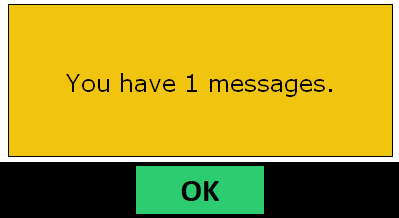
Optional messages can be sent to each branch, informing the staff which items need to be picked.
Version 2:
Version 3:
The above prompt will appear on the POS and the messages can be printed from the manager screen.
 Except where otherwise noted, content on this wiki is licensed under the following license: CC Attribution-Noncommercial-Share Alike 4.0 International